Monday, December 29, 2014

10 Best PowerPoint Backgrounds for Happy New Year 2015

New Year 2015 is arriving soon. The most interesting part of embracing the new year may be making your new year’s resolution and saying “Happy New Year” to everyone around you. Some people will make PowerPoint presentations to celebrate and memorize the coming of the Year 2015.

When it comes to PowerPoint presentations about embracing the new year, many people will want to choose the templates of the Happy-New-Year theme. If you are trying to find the best templates for your Happy-New-Year presentations, you will need to search on the Internet to find the ones you need because the templates in Office PowerPoint don’t provide any related templates by default. The post will introduce 10 best PowerPoint templates for your Happy-New-year presentations, and you may find the one(s) you need.

1.      
source: http://www.template.net/design-templates/new-year-greeting-card-designs/
2.
source: http://usahumor.com/wp-content/uploads/2014/12/Fire-works-wallpaper-happy-new-year.jpg
3.
source: http://www.pptback.com/2015-happy-new-year-celebrations-pptbackground.html


4.
source: http://www.pptbackgroundstemplates.com/new-year-2015-happy-1024x768.html
5.
source: http://www.ppt-backgrounds.net/christmas/5543-new-year-2015-christmas-backgrounds


6.
source: http://photo.elsoar.com/wp-content/images/Happy-New-Year-2015-Tree.jpg


7.
source: http://www.backgroundlabs.com/item/2015-happy-new-year/


8.
source: http://pixhome.blogspot.com/2014/12/2015-happy-new-year-texted-hd-wallpapers-background-images-free-download.html


9.
source: http://askatechteacher.com/wp-content/uploads/2014/12/kozzi-Happy_new_year_2015_year_of_sheep-2248x16901.jpg


10.
source: http://2015newyear.org/wish-happy-new-year-2015-hd-wallpaper

Monday, December 22, 2014

How to Retrieve Unsaved PowerPoint Presentations


If you are making a PowerPoint presentation for your lecture tomorrow, you should save your presentation once a while in case that your PowerPoint files would get lost. In certain occasions, we will unfortunately lose the unsaved PowerPoint files, and we desperately want to retrieve the lost PowerPoint files.

How to do it then? People may feel confused on this issue. I’m using a Windows 7 computer and the Microsoft PowerPoint in Version 2010, so I will show you how to retrieve unsaved PowerPoint 2010 files on Windows 7 computer at first.

Before starting to recover the unsaved PowerPoint files, you need to make sure that the PowerPoint AutoRecover is enabled within PowerPoint. You can have a check by clicking "Tools > Options", and then check "Save AutoRecover Info every" and enter a number you want. If you have done this before, you are able to find the auto-saved PowerPoint records after the unexpectedly data loss. The following guidance will show you how to do that:

1.       Click the Start button on your computer, and enter ppt*.tmp in the searching column, and hit the searching button.
2.       If a file matches, you can right-click the file and choose "Rename". Rename the file with any name you want, but you should add the file extension as .ppt.
3.       Double-click to open the file, and check whether this is the file you need to recover. If it is, you can use the "Save as" option to save it on your computer. Note that if you are getting an error message when you attempt to open the file, you will not be able to recover the PowerPoint file.

If you can’t use this method to get the files back, the following method may also be helpful:

1.       Go to "Save" option in your PowerPoint, and find the location of the AutoRecover file. On a Windows 7 computer, it should be in C:\Users\Administrator\AppData\Roaming\Microsoft\PowerPoint.
2.       Click "Tools > Folder Options > View", and check "Show hidden files and folders". Then you will get the PowerPoint files with a random-code name.
3.       Double-click to open the PowerPoint file to see whether it is the one you want to recover. If yes, you can save it with the name you need.

You are also able to take advantage of the "Recover Unsaved Presentations" option to recover the deleted PowerPoint files. You only need to open the PowerPoint file, go to "File > Recent", and click "Recover Unsaved Presentations" at the right bottom. This recovery option is built in PowerPoint 2010 or later.

If you want to retrieve an unsaved PowerPoint 2007 presentation, you will find it is easy to be done. If you don’t save the PowerPoint file and restart MS PowerPoint application, then the app will automatically recover the unsaved file. If not, you can search for the unsaved presentations on your computer. The following steps will show you how to do it:

1.       Start PowerPoint 2007 on your computer.
2.       Click the Microsoft Office button and click "Open".
3.       Choose "File Name" and enter the name of the PowerPoint file in the box. If you don’t remember the name of the file, just enter %temp%\ppt*.tmp in the box.
4.       Click the Open button and then click the name of the file you want to recover, then click "Open".
5.       If you find the file you want to recover, just click "Save" to save the files on your computer.

Note that the presentations may not be saved in random-coded names, so you will have to open the files one by one until you find the presentation you need.


These methods may be helpful for the people who want to retrieve unsaved PowerPoint presentations, and when you come up with a power failure or program crash which leads to the loss of the presentations, you can check these methods out.

Thursday, April 25, 2013

How to Play PowerPoint Presentations on Samsung Galaxy Mega 5.8 in Different Cases

samsung galaxy mega 6.3
Samsung Galaxy Mega 5.8
Samsung Galaxy Mega 5.8 was introduced into the world on the same day with Galaxy Mega 6.3. It is basically a smaller Galaxy Mega 6.3 from screen size, to key specifications and most likely, price.

The Galaxy Mega 5.8 is constructed from Samsung's very familiar glossy plastic. Despite being smaller than the Galaxy Mega 6.3, the Mega 5.8 is slightly thicker — 9mm compared to 8mm. The Samsung Galaxy Mega 5.8's TFT screen only has a qHD resolution of 540x960, which gives it a pixel density of 190ppi. This is significantly less than all current flagship Android phones. There's an 8 megapixel rear-facing camera for still photos and full HD video recording and a 1.9 megapixel front-facing camera for video calls.

Compared to the Galaxy Mega 6.3, the Galaxy Mega 5.8 has a slower, dual core processor (1.4GHz compared to 1.7GHz), just 8GB of internal memory and a 2600mAh removable battery. There's also no 4G connectivity. The Galaxy Mega 5.8 has a microSD card slot to expand the 8GB of internal memory.

The Galaxy Mega 5.8 has the same software as the Galaxy Mega 6.3. It runs the latest version of Android, 4.2 Jelly Bean, but is skinned with Samsung's TouchWIZ user interface.

The Samsung Galaxy Mega 5.8 will be available globally from May and will be initially be released in Europe and Russia. There's been no word as yet if and when the Galaxy Mega 5.8 will be released in Australia.

powerpoint to galaxy mega 5.8
Play PowerPoint on Samsung Galaxy Mega 5.8
Samsung Galaxy Mega 5.8 has the similar features in most parts. So, just like playing PowerPoint on Samsung Galaxy Mega 6.3, we have the same two ways to play PowerPoint on Galaxy Mega 5.8 - install PowerPoint viewer apps for android and convert PowerPoint to video before playing on Galaxy Mega 5.8.

The previous method is suitable for those presentations which are aimed at logic and text contents, while the second method works perfect when the slideshows include rich multimedia, animations or transformations.

Here are the tools you may need: Android PowerPoint Viewer Apps and PowerPoint to Galaxy Mega 5.8 Converters.

Tuesday, April 23, 2013

Methods to Play PowerPoint on Samsung Galaxy Mega 6.3

samsung galaxy mega 6.3
Samsung Galaxy Mega 6.3
Samsung's Galaxy Mega 6.3 still doesn't have an exact launch date, but it has made its way to the FCC.

The 6.3-inch 720p screen is no match for the Galaxy S4 in terms of resolution or display, but is perfectly adequate for the mid-to-high end of the market that the Galaxy Mega will likely be priced to attract.

Key hardware specs include a 1.7GHz dual core processor, internal storage of 8GB or 16GB, 1.5GB RAM and support for microSD cards up to 64GB.

Firing up the handset takes you to the usual array of Android apps found on the Android 4.2 Jelly Bean build.

While the Mega was announced with LTE and HSPA+ radios, it appears that this version, model I9200, only has the latter onboard (I9205 is the LTE-equipped variant). It's a safe bet that this particular model won't officially make it stateside, but the reports seem to indicate that it'll play nice with AT&T's HSPA+ bands. In case you're thinking of importing this 1.7GHz device down the line, you can have a look at our hands-on here. Otherwise, you can have a look at the filing by heading to the source link.

The Mega line currently has two different sized devices, Mega 5.8 and Mega 6.3, though both (as the name would imply) are far larger than a 'normal' sized smartphone.
powerpoint on galaxy mega 6.3

Play PowerPoint on Galaxy Mega 6.3
Default apps on Galaxy Mega 6.3 don't include any one which can play PowerPoint on Galaxy Mega 6.3 directly. So, two ways are provided here for you.

Method 1: Since Galaxy Mega 6.3 runs Android 4.1, all of the PowerPoint viewer apps in Android Market can be used by owners. Such as, Mobile Document Viewer, ThinkFree Office Mobile Viewer, etc. More recommendation at TOP 6 Free PowerPoint Viewers on Android Devices.

Method 2: Though Android OS on mobile and tablet is stronger and stronger these years, it is no match for Windows OS on PC. Makers can find many features in Microsoft PowerPoint which are provided by Microsoft Office developers. These amazing functions may become invalid when you play PowerPoint on Samsung Galaxy Mega 6.3 via android apps. Try to convert PowerPoint to video and play output video instead of playing PowerPoint on Samsung Galaxy Mega 6.3 directly. Under the help of professional PowerPoint to Video Converters, all of the embedded audios, videos, animations and transformations can be kept and shown in the videos.

Anyway, choose the suitable way to play PowerPoint on Galaxy Mega 6.3. If the points are images and texts, download free PowerPoint viewer apps to view. If you want to show the audiences a perfect presentation show, fulling of the audio-visual experience, think about the second one.

Monday, April 22, 2013

3 Methods to Convert PowerPoint 2013 to Word

Microsoft PowerPoint 2013 has been out for several months. I know that most of you, the Microsoft Office users have already updated to the latest version. I wrote two articles in the series of How to Convert PowerPoint to Word: 3 Methods to Convert PowerPoint to Word and 3 Methods to Convert PowerPoint Mac to Word. Both of them are welcomed. Then, this article is here, Methods to Convert PowerPoint 2013 to Word.

Microsoft PowerPoint 2013 has very similar features in the side of conversion from PPT to DOC 2013. The ends of all the ways of powerpoint to word 2013 are extracting the texts in original PowerPoint presentations. Here we go!

Method 1: Send PowerPoint 2013 to Word
  • Open your presentation with Microsoft PowerPoint 2013.
  • Select FILE > Export > Ceate Handouts > Create Handouts

  • Select FILE tab:
    ppt 2013 to doc

    Click Export in the list:
    ppt 2013 to doc

    Select Create Handouts option and choose the Create Handouts in the right panel again:
    ppt 2013 to doc

  • Then, you will be presented with a Send to Microsoft Word window. From here, choose the type of page layout you want. Such as, Notes next to slides, Blank lines next to slides, Notes below slides, Blank lines below slides and Outline only. Once you have selected a layout that you like, click OK to begin the conversion process.
  • ppt 2013 to doc
  • If you choose Blank lines next to slides, in your output word document, you will see:
  • ppt 2013 to doc
    In this format your options for additionally editing the presentation in Word are nearly limitless. If you choose Outline only, you won't get any pictures except the outline texts.

Method 2: Convert PowerPoint 2013 to Word in 'Save as'
  • Click the File tab > Save As.
  • Choose a Location > Choose a Folder, and in the File name box, enter a new name for the file.
  • In the Save as type list, click Rich Text Format (.rtf). 
  • ppt 2013 to doc
    There are more formats that you can save the file in. For example, Web Page (.htm or .html), and Comma Delimited (.csv).

Method 3: Convert PowerPoint 2013 to Word with complete text
In the above two methods, not all of the text in PowerPoint 2013 will be output in the Word document. Now, you can use PDF documents as a bridge.
  • Click the File tab.
  • Click Save As. To see the Save As dialog box in PowerPoint 2013, you have to choose a location and folder.
  • In the File Name box, enter a name for the file, if you haven't already.
  • In the Save as type list, click PDF (*.pdf). If the document requires high print quality, click Standard (publishing online and printing). If the file size is more important than print quality, click Minimum size (publishing online). Click OK when finished.
  • Click Save.
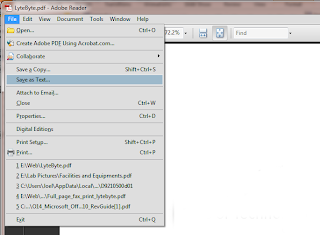
  • Then, open the output PDF file and use Save as Text option from PDF to get all the texts from a PowerPoint but usually this option gets you the text in unformatted way.
  • pdf to doc


Related Articles:

Monday, April 8, 2013

Free Download SUN Wallpapers for iPhone 5

Free download hd SUN iPhone wallpaper 1
sun iphone wallpaper 1

Free download hd SUN iPhone wallpaper 2
sun iphone wallpaper 2

Free download hd SUN iPhone wallpaper 3
sun iphone wallpaper 3

Free download hd SUN iPhone wallpaper 4
sun iphone wallpaper 4

Free download hd SUN iPhone wallpaper 5
sun iphone wallpaper 5

Free download hd SUN iPhone wallpaper 6
sun iphone wallpaper 6

Free download hd SUN iPhone wallpaper 7
sun iphone wallpaper 7

Free download hd SUN iPhone wallpaper 8
sun iphone wallpaper 8

Free download hd SUN iPhone wallpaper 9
sun iphone wallpaper 9

Sunday, April 7, 2013

How to Play PowerPoint Presentations on HTC First

HTC First
HTC First
The highlight of HTC First is Facebook Home. HTC First is the first smartphone which is pre-installed Facebook Home, a family of apps which makes you never offline in your social circle. The 4.3-inch super LCD screen with incredible clarity is enough in our daily life. 341 pixels per inch with a stunning 1280 x 720p resolution. It runs Android 4.1 with 1GB RAM and 16GB total storage. It is coming in 4 colors: red, light blue, white and black. The First will be available for $99 (with a 2 year contract naturally) starting on April 12, and pre-orders for the device kick off today. Those of you outside the U.S. will be able to join in the fun shortly too, as Mark Zuckerberg also noted that the phone would find its way to UK carriers Orange and EE in short order.

Facebook Home
With the new HTC First featuring Facebook Home, you can keep up with all your friends in real time. Whenever turn on your phone, images and posts of your friends from your news feed streams to your phone for a home screen that never looks the same. You'll never miss a moment with upfront notifications about events, calls and Facebook updates. Messages feature your friends' profile pictures and you can chat while using other apps. Access your favorite apps and post right to Facebook on the customizable app launcher. With HTC First, you'll always stay connected to your friends.

HTC First Specs
Let's check the detailed specifics of HTC First.
PROCESSORQualcomm® 8930AA, dual core 1.4 GHz
PLATFORM ANDROIDAndroid™ 4.1
Facebook Home
SIM CARD TYPEmicroSim
MEMORYTotal storage : 16GB, available capacity varies1
RAM : 1 GB LPDDR2
NETWORKUMTS/HSPA/HSPA+: 850/900/1900/2100 MHz
GSM/GPRS/EDGE: 850/900/1800/1900 MHz
LTE: 850/1900 MHz
GPSInternal GPS antenna + GLONASS
Digital compass
SENSORSGyro sensor
Tri-axis Accelerometer
Proximity sensor
Ambient light sensor
CONNECTIVITY3.5 mm stereo audio jack
NFC capable
Compliant with Bluetooth 4.0 BLE
Wi-Fi®: IEEE 802.11 a//b/g/n
micro-USB 2.0 (5-pin) port
SOUNDBuilt-in dual-microphones
Speaker with built-in amplifier IC (support 2.55V)
CAMERA5 MP
BSI sensor
F2.0 aperture and 28 mm lens
1080p Full HD video recording
Front Camera: 1.6 MP BSI front camera (ultrawide angle)
MULTIMEDIAAudio supported formats: .aac, .amr, .mp3, .wav, .wma (Windows Media Audio 9)
BATTERYEmbedded rechargeable Li-polymer battery
Capacity : 2000 mAh
AC ADAPTERVoltage range/frequency: 100 ~ 240 V AC, 50/60 Hz
DC output: 5 V and 1 A

Play PowerPoint on HTC First
HTC First likes its brothers, running Android OS. So, the easiest way to play .ppt or .pptx files is download PowerPoint viewer apps for Android. Developers provide so many office apps in Android Market. Choose your favorite one, download and install it to open your PowerPoint documents.

These PowerPoint viewers don't support play embedded audios and videos. To enjoy a whole presentation, you'd better convert powerpoint to video, keeping everything from original document.
Related Posts Plugin for WordPress, Blogger...